
Copy UI Element for AI Coding, From Any Website
AI coding assistants are good at code and bad at seeing. When a change is visual, make this card match that one, the model cannot look at your screen. So most people paste a screenshot or describe the element in words, and the assistant guesses at the markup and the styles. Qursor takes a different route: you point at the element in Chrome and it copies the exact selector, the computed styles, and the markup as one clean block you paste into your assistant. This piece covers what it copies, what it costs (there is some nuance), and how it compares to DevTools, stagewise, CSS Scan, and Pluck.

OneTimePay.app
8 min read
Point at an element
Copy clean context
context.md
Copied
.hero__cta color: #ffffff; background: #000000; font: 600 14px Inter; padding: 10px 16px; <button class="hero__cta">
Paste into your AI
AI coding assistant
.hero__cta context
Make this button use our brand blue and a bigger tap target.
How do I copy a website's UI component into Cursor with its styles?
Use Qursor, a Chrome extension. You point at any element on any page and it copies a clean Markdown block, the selector, the computed styles, and the HTML/CSS, to your clipboard to paste into Cursor, Copilot, or Claude. Chrome DevTools' Copy outerHTML drops the computed styles; Qursor keeps them.
On this page
How do I copy a website's UI component into Cursor with its styles?
In short
Use Qursor, a Chrome extension. Point at any element on any page and it copies a clean Markdown block, the exact selector, the computed styles, and the HTML/CSS, to your clipboard to paste into Cursor, Copilot, or Claude. DevTools' Copy outerHTML gives the markup but drops the computed styles; Qursor keeps them.
The workflow is three steps. Install the extension, point at the button, card, or section you mean, and copy. What lands on your clipboard is a compact block, usually a few hundred tokens, that names the element by selector and carries the styles it actually renders with. You paste that into your assistant with your instruction, and it edits what is on screen instead of a guess. That is the practical way to copy element code for cursor without hand-assembling it from the Styles pane.
One thing to be clear about from the start: Qursor copies to your clipboard for you to paste. It does not wire into your editor and drive the agent for you, the way some rival tools do. That keeps it simple and universal (it works with any chat), and it is the trade this article keeps coming back to.
Why outerHTML alone leaves your AI guessing
In short
Right-click, Copy outerHTML, paste: the AI gets the markup and the class names but none of the styles those classes resolve to. It reinvents the look from guesses. Qursor bundles the computed styles and the selector with the markup, so the model edits what is actually on screen.
What DevTools copies, and what it drops
The browser already has a copy tool, and for a lot of jobs it is enough. The gap shows up with styles. DevTools' Copy outerHTML serializes the element and its children into markup, including class names and any inline style attributes, but it does not pull in the computed styles those classes resolve to from your stylesheets. To get those you use a separate Copy styles action or read them out of the Styles pane by hand. Hand an assistant the markup alone and it has to infer the colors, spacing, and type, which is exactly where AI UI edits drift.
What Qursor puts on your clipboard
Qursor rolls the two together. Pointing at an element gives you its dimensions, computed colors, font, padding, and margin in one readout, and its copy action bundles those computed styles with the markup and the selector. That is the difference between the assistant seeing ui context without screenshots and seeing a bare tag.
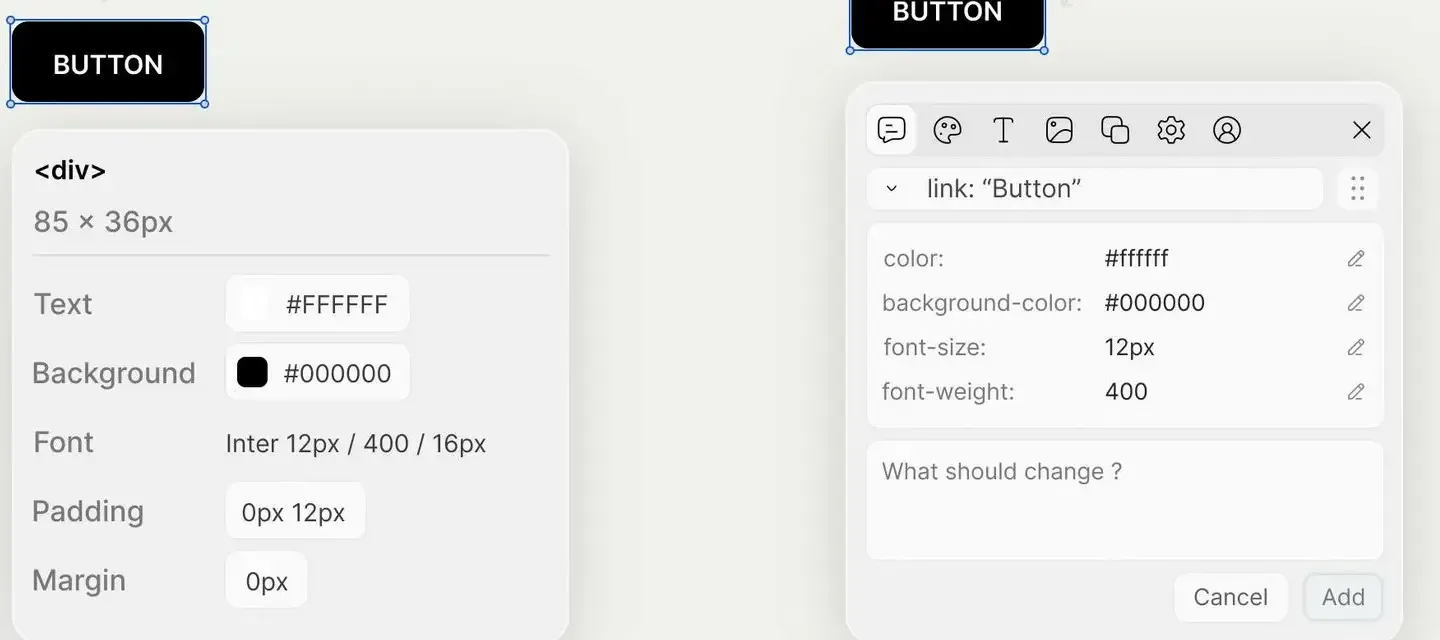
Point at any element, on any page
In short
Qursor works on any page you can open in Chrome: your localhost, a staging URL, a production app, or a competitor's site. There is nothing to wire in. Install the extension, point at a button, card, or section, and copy its context. No project integration and no config.
Live sites, staging, and localhost
This is the quiet advantage. Because it reads the rendered page in the browser, it does not care whose code built it. You can grab a component from your own app, from a staging deploy, or from a site you admire and want to reference. That makes turning any web ui to ai context a matter of a click, not a build step. One honest limit: the extra context Qursor can attach about a source file path only makes sense on your own app, where those files exist, not on an arbitrary production site.
Zero setup, just an extension
There is no npm package to add, no toolbar to inject into your project, and no config file. You install it from the Chrome Web Store and it is ready. That is the main practical difference from the developer-toolbar tools that give you deeper, direct-to-agent context but only inside a project you have wired them into.
Clean context you paste into any assistant
In short
The copied block is compact, usually a few hundred tokens: the selector, the computed styles, and the HTML or CSS (or JSX), plus any notes you add. It goes to your clipboard, so it drops into Cursor, Copilot, Claude, or any chat. It is context you paste, not a live agent hookup.
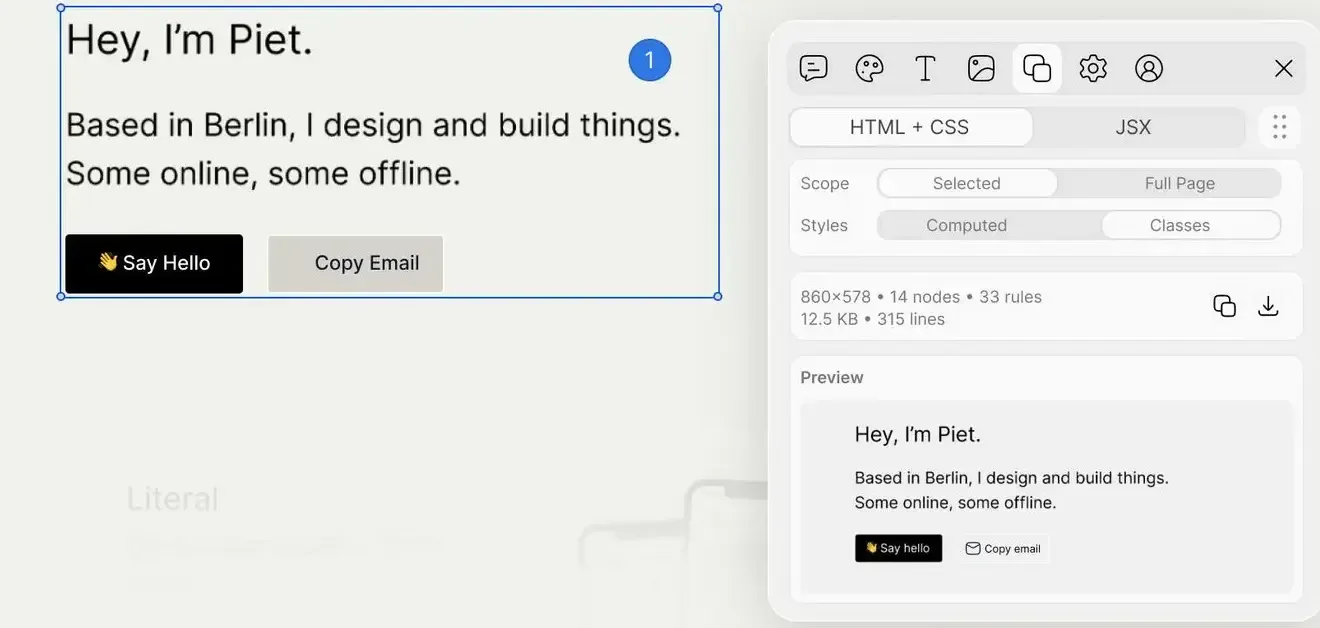
Selector, styles, and your annotations
You choose the shape of the output: HTML with CSS, or JSX; just the selected element, or the full page; computed styles, or class names. On top of the code you can drop a note on the element (change this button to our brand blue) so the instruction travels with the context. Qursor also carries a color picker, a font detector, and an asset grabber, so the exact hex, the font stack, and an SVG come along when you need them.
Clipboard, not a direct agent bridge
The delivery is deliberately old-fashioned: it copies, you paste. The upside is that it works with every assistant and needs no integration. The downside, stated plainly, is that it will not reach into your editor and apply the change for you, which is what the toolbar-and-MCP tools in the next section are built to do. If you want a one-click grab that works anywhere, clipboard is a feature. If you want the AI to act without you pasting, it is a limit.
What it costs, honestly
In short
Qursor has three tiers: a free plan capped at three picks a day, a $29-a-year subscription, and a $39 one-time lifetime license. The buy-once option is the draw for a subscription-averse developer, but the free tier and the yearly plan exist too, so pick the one that fits.
Free, yearly, or buy once
The free tier lets you try the full flow, capped at three element picks a day, which is enough to know whether it fits your work. Past that you either pay $29 a year or buy the $39 lifetime license once and never think about it again. On a buy-once directory the lifetime option is the interesting one, and it is genuinely there, but it is fair to say the plainest fact out loud: Qursor is not a subscription-free product, it simply offers a buy-once option alongside a subscription and a free tier.
A new, small tool: set expectations
Track record matters when you are about to route your page content through an extension. Qursor is new and small: at the time of writing its Chrome Web Store listing shows about 93 users and a 3.5 rating from two reviews. It is also worth reading its privacy policy before you lean on it, since the policy allows sharing collected page content with service providers when you send content on, so this is not a fully-local, nothing-leaves-your-Mac guarantee. None of that is disqualifying for a $39 tool, but you should buy it knowing it.
How Qursor compares to DevTools, stagewise, CSS Scan, and Pluck
In short
DevTools is free but drops computed styles. stagewise is open source and talks straight to your IDE agent, but only on your own dev app. CSS Scan copies CSS for design cloning. Pluck is a close, cheaper clipboard rival. Qursor's edge is any-site, zero-setup, with a buy-once option.
| App | Price | Scope | Setup | Output for AI |
|---|---|---|---|---|
Qursor this one this article | $39 once* | Any site | Install extension | Markdown, clipboard |
Browser DevTools built in | Free | Any site | Built in | outerHTML, no styles |
stagewise open source | Free + paid* | Your dev app | npm + project | Direct to IDE agent |
Pluck clipboard rival | Free / $9.99/yr | Any site | Install extension | Markdown, clipboard |
CSS Scan design cloning | ~$69 once | Any site | Install extension | HTML + CSS (design) |
DevTools and CSS Scan
Browser DevTools is free, built in, and works on any page, so it is the honest baseline. Its weakness is the one this whole category exists to fix: Copy outerHTML leaves the computed styles behind. CSS Scan solves the styles problem and is also a one-time purchase (about $69), but it is built for designers cloning CSS, not for packaging an element as AI context, and it costs more than Qursor's lifetime license. If your goal is to feed an assistant rather than to clone a stylesheet, that framing matters.
stagewise and the MCP tools
stagewise is the serious open-source option, and it is worth being precise about it: it is genuinely free and open source (AGPLv3), and it is more powerful than Qursor in one direction. You wire its toolbar into your own project with an npm package, and then, inside your own running dev app, it sends the selected element straight to your IDE agent (Cursor, Copilot, Windsurf) and the edit happens in your editor. The catch is scope and setup: it only works on an app you have integrated it into, not on any site, and it needs that integration. MCP-based tools like mcp-pointer or browser-tools make a similar trade, direct-to-agent power for a heavier setup. Qursor goes the other way: no setup, any page, but clipboard rather than a live bridge.
Price
$39 once
Also
Free tier · $29/yr
Scope
Any site in Chrome
Copies
Selector · styles · HTML/CSS
Output
Markdown to clipboard
Store
~93 users (new)
Who it fits, and who should look elsewhere
Qursor fits a developer who lives across many pages, their own app, staging, and other people's sites, and wants a no-setup way to hand any element to whatever assistant they are using, with the option to pay once. The honest caveats are that it is new and small, it is clipboard-only rather than a live agent integration, it is Chrome-only, and it is not subscription-free or fully private. If you only ever work inside one project and want the AI to apply changes directly, stagewise or an MCP tool is the better fit. If you just need CSS to clone a design, CSS Scan does that. If you want a free-tier clipboard tool much like this one, Pluck is worth a look. If you want the zero-setup, any-page, buy-once version, Qursor is the one to try.
Confirm the pricing and scope before you buy
Qursor is a Chrome extension with a free tier, a $29/year plan, and a $39 one-time license; it copies context to your clipboard and does not integrate directly with your editor. Rival details here come from each maker's own site in August 2026: DevTools (free), stagewise (open source, AGPLv3), CSS Scan (about $69 once), and Pluck (free plus about $9.99/year). Prices and features change, so check the source page before you commit.
Frequently asked questions
Which element-context tool is best for AI coding, and how do they compare?
There is no single best; it depends on your setup. If you want zero setup and to grab elements from any site, a clipboard extension like Qursor or Pluck fits. If you want context sent straight to your IDE agent and you only work in your own dev app, stagewise or an MCP tool like mcp-pointer is stronger. If you only need CSS for design cloning, CSS Scan does that. Browser DevTools is free but its Copy outerHTML drops the computed styles.
Is there a one-time-payment tool to copy UI element context instead of a subscription?
Yes. Qursor sells a $39 one-time lifetime license, and CSS Scan is a one-time purchase (about $69), though CSS Scan is aimed at design cloning rather than AI context. Be aware that Qursor also offers a free tier (three picks a day) and a $29-a-year plan, and that close rivals like Pluck are subscription-based, so confirm the current pricing before you buy.
Does Qursor work on any website, or only on my own app?
Any website you can open in Chrome, including live production sites, staging URLs, and your localhost. That is the main practical difference from stagewise, whose toolbar has to be wired into your own project and only works on your own running dev app. One caveat: Qursor’s source-file-path context only makes sense on your own app, not on an arbitrary site.
What exactly does Qursor copy, and where does it go?
It copies a compact Markdown block, usually a few hundred tokens: the element’s selector, its computed styles, and its HTML or CSS (or JSX), plus any notes you added. The block goes to your clipboard, so you paste it into Cursor, Copilot, Claude, or any chat. It is context you paste yourself, not a live connection into your editor.
How is this different from just copying outerHTML in DevTools?
Copy outerHTML hands the AI the markup and class names but not the styles those classes resolve to, so the model has to guess the look. Qursor bundles the computed styles and the selector with the markup, which is the gap that makes DevTools frustrating for UI work. DevTools can copy computed styles too, but only through a separate step.
Is Qursor private, and is it a mature tool?
Be realistic on both. Its privacy policy says it collects page content and can share it with service providers when you send content on, so it is not a fully-local, nothing-leaves-your-machine guarantee. And it is new and small: about 93 Chrome Web Store users and a 3.5 rating from two reviews at the time of writing, so it has far less track record than DevTools or CSS Scan.
Sources
- 1
The maker’s own site. Source for what it copies (selector, computed styles, HTML/CSS/JSX as a Markdown block), the any-site scope, the named assistants (Cursor, Copilot, Claude), the extras (color, font, and asset pickers), the "no Tailwind output" note, and the three pricing tiers (free, $29/year, $39 lifetime).
- 2
Qursor on the Chrome Web Store
The store listing, cited for the clipboard-based workflow, the Developer Tools category, and the honest track-record numbers: about 93 users and a 3.5 rating from two reviews, updated June 2026. Confirms it is new and small.
- 3
Chrome DevTools: CSS reference (developer.chrome.com)
Documents how DevTools handles element markup and styles. Basis for the point that Copy outerHTML gives you the markup and class names but not the computed styles from stylesheets, which need a separate Copy styles action.
- 4
The stagewise repo (open source, AGPLv3). Source for the accurate comparison: stagewise wires an npm toolbar into your own project, works only on your own running dev app, and sends context straight to the IDE agent, rather than to the clipboard.
- 5
A one-time-purchase extension (about $69) that copies an element’s HTML and CSS across Chrome, Firefox, Safari, and Edge. Cited as the design-cloning comparison point: one-time pricing, but aimed at cloning styles rather than feeding an AI assistant.
- 6
A close, cheaper clipboard rival: a browser extension with a free tier and a roughly $9.99/year Pro plan that captures HTML, computed styles, and assets into a structured prompt for AI tools. Used to keep the comparison honest about subscription alternatives.

Qursor
Point at any UI and copy clean context for your AI coding assistant.
once
Web
More apps you buy once: browse the desktop