
The Mac Radial Menu That Adapts to Every App
Every Mac app has its own set of keyboard shortcuts, and holding all of them in your head is a losing game. You learn your design tool's keys, switch to your editor, and the same fingers now do something else. Pie Menu takes a different route: one shortcut opens a pie-shaped menu of the current app's actions around your cursor, so you click a wedge instead of recalling a combination. This piece covers how that works, how you set it up, and how it stacks up against the other Mac radial menus, some of which cost a good deal less.

OneTimePay.app
8 min read
Active app: your design tool
Frame
Rectangle
Pen
Text
Comment
Scale
Search
Move
Is there a Mac radial menu that changes based on which app I'm in?
Yes. Pie Menu is a macOS app that puts a radial, pie-shaped menu on a single keyboard shortcut. Press the shortcut and a ring of actions opens around your cursor, showing commands for whatever app is currently in focus. Click a wedge to run one. Switch apps and the same shortcut opens a different ring.
On this page
Is there a Mac radial menu that changes based on which app I'm in?
In short
Yes. Pie Menu is a macOS app that puts a radial, pie-shaped menu on a single keyboard shortcut. Press the shortcut and a ring of actions opens around your cursor, showing commands for whatever app is in focus. Click a wedge to run one.
The core idea is that the shortcut stays the same while the menu behind it changes. The maker states it plainly on the product site: use your favorite combination to open Pie Menu, and when you are in another program, it is the same shortcut to open the menu but different actions to choose from. So instead of memorizing one set of keys for your design tool and another for your browser, you learn a single trigger and let the app show you the right wedges. Pie Menu is a mac radial menu built entirely around that one habit.
One shortcut opens the menu, wherever your cursor is
In short
Pie Menu lives on one keyboard shortcut you choose. Press it and the radial menu appears centered on your pointer, so your hand never travels to a fixed corner or toolbar. Click a wedge to fire the action, and the menu closes so you keep working in place.
Because the ring is drawn around the cursor, the action you want is always the same short flick away, no matter where you are on the screen. The app's own example uses holding Shift plus Z, but you pick your own combination. Each wedge carries an icon, either one of Apple's SF Symbols or a custom one, so you read the ring by shape and position rather than by scanning a text list.

Stop memorizing Mac keyboard shortcuts
The point of a radial menu is to move the remembering out of your head and onto the screen. A traditional shortcut lives only in memory, and every app you use adds another set to recall. With Pie Menu the actions are visible the moment you open the ring, so a shortcut you use twice a month is as reachable as one you use hourly. You are not stuck memorizing Mac keyboard shortcuts you rarely touch just to avoid digging through a menu bar.
Why a menu that changes per app beats a fixed cheat sheet
In short
Because the same shortcut shows different actions depending on the app in focus, you never scroll past commands that do not apply. In your editor the ring holds editor actions. Switch to your design tool and it swaps to that tool's actions. Nothing on screen is noise.
A printed cheat sheet or a sticky note is frozen. It lists every shortcut for one app and nothing for the next, and it cannot tell what you are doing right now. A per-app radial menu is the opposite: it is scoped to the frontmost app by design, so the eight or so wedges you see are the eight actions that matter in this exact moment, not a wall of keys you have to filter yourself.
Spatial memory does the remembering for you
The quiet benefit shows up after a week. Because each app's wedges keep the same positions, your hand starts to learn the layout by place rather than by name. Top-right becomes “frame” in your design tool the way a light switch becomes muscle memory. That is the same spatial habit people build with a Wacom tablet ring or Blender's pie menus, brought to any Mac app you set up.
Setting up your first per-app radial menu on Mac
In short
You pick a global shortcut, then choose an app and add the actions you use most in it. Each wedge maps to a command or a keyboard shortcut you would otherwise have to memorize. You build one menu per app, so the ring you see always matches the app you are in.
Setup runs from a single settings window with a list of apps down the side. Pick Figma, Finder, Chrome, or any app you add, and you get a wedge editor plus a list of assignable actions. Pie Menu also ships ready-made shortcut sets for popular apps and a browser to pull them in, so you rarely start from a blank ring. In the panel below, the Figma preset already maps V to Move, F to Frame, R to Rectangle, P to Pen, and so on.
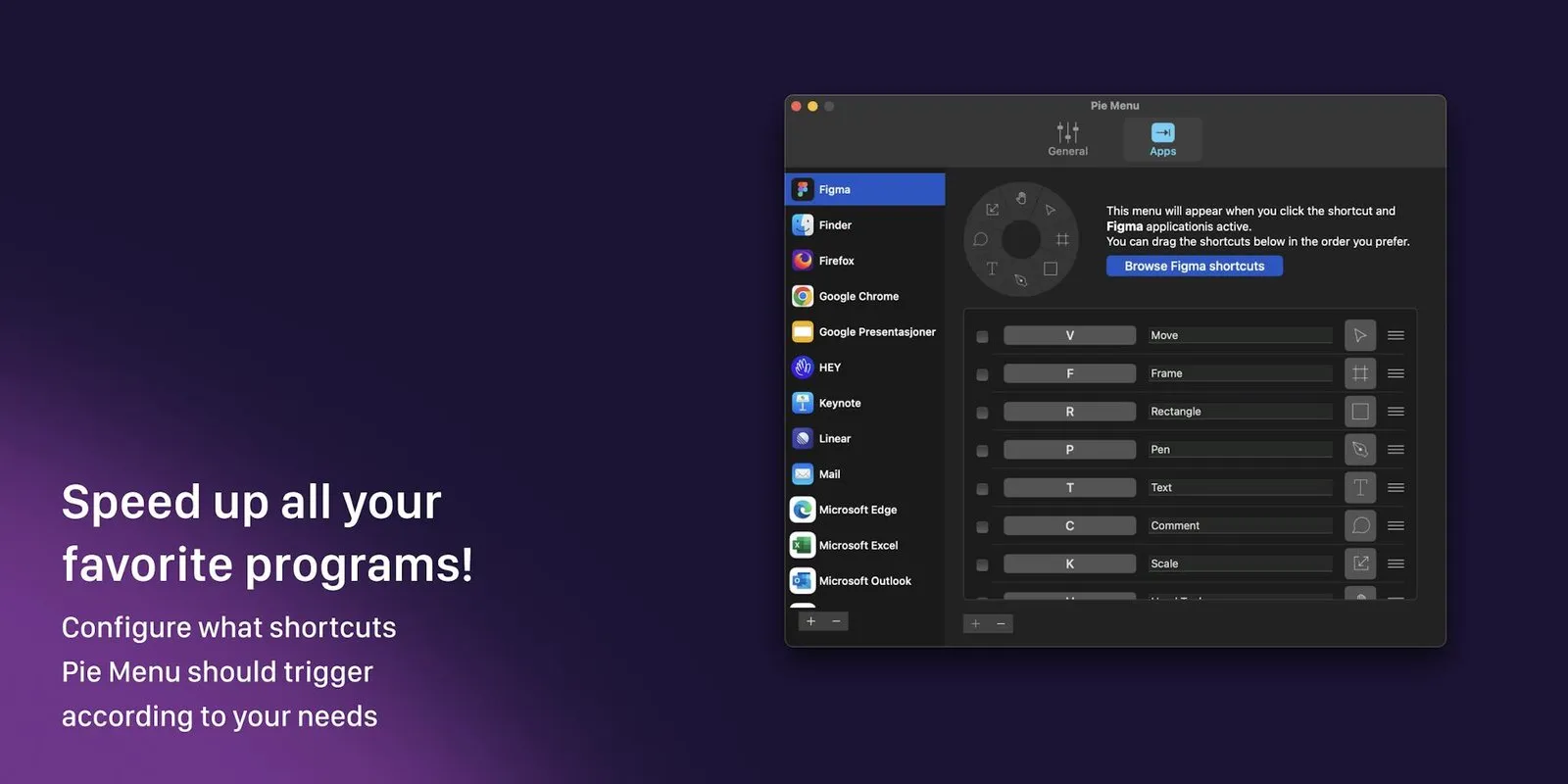
Mapping wedges to the commands you actually use
A radial menu is only as good as the actions on it, so the setup rewards a little honesty about your own habits. Put the five or six commands you reach for constantly on the ring, leave the rare ones in the app's normal menus, and drag the wedges into an order that feels natural under your hand. Because each wedge just triggers a command the app already has, you are not learning new shortcuts, you are giving the ones you keep forgetting a place you can point at.
Who Pie Menu is for
In short
Pie Menu fits Mac power users who jump between apps and cannot hold every app's shortcuts in their head. If you already like radial menus from a Wacom tablet, a gaming mouse, or Blender, this brings the same pointing-based control to macOS.
Designers and editors who live in a tool like Figma, where a wedge of Move, Frame, Pen, and Comment is faster to point at than to recall.
Developers and writers who bounce between an editor, a browser, and a terminal all day and pay a small tax every time the shortcuts change under their fingers.
Anyone who already thinks radially, from tablet artists to Blender users, who wants that muscle memory across every Mac app rather than one.
It is a less obvious fit if you mostly work in one app whose shortcuts you already know cold, or if you prefer a keyboard-only flow and never want to reach for the mouse. In those cases the ring adds a step rather than removing one, and that is worth being honest about before you buy.
How Pie Menu compares to other Mac radial menus
In short
Pie Menu is the most polished native option in this field, and the priciest. Two rivals do per-app radial menus too and cost less: Radial is a cheaper one-time app, and Kando is free and open source. BetterTouchTool and Raycast can approximate parts of the idea with tradeoffs. Here is the whole picture in one place.
| App | Price | Purchase model | Per-app radial menu | Native macOS | Platforms |
|---|---|---|---|---|---|
Pie Menu this one native, ships app presets | $39.99 | Buy once or subscribe | macOS 13+ | ||
Radial AppVerge | €19.99 | Buy once | macOS 15+ | ||
Kando open source | Free | Open source | macOS · Win · Linux | ||
BetterTouchTool general automation | $12–$24 | Buy once | macOS | ||
Raycast command palette | Free / Pro | Free + subscription | macOS |
Radial and Kando: the cheaper per-app radial menus
Radial is the closest rival and the value pick. It is a one-time purchase at €19.99 that covers up to five Macs, and it leans harder into automation, with 16 action blocks, AppleScript and shell support, and one-click community presets. It also does context-aware menus, so it changes per app like Pie Menu does. The catch is that it requires macOS 15, and its automation focus is more than some people want. Kando is free and open source, runs on macOS, Windows, and Linux, and can open a different menu depending on the current app or window. It is the best price by definition, but it is not a native Mac app and it leaves more of the setup to you.
BetterTouchTool and Raycast: close, but not radial-first
BetterTouchTool is a one-time license ($12 for two years of updates, or $24 lifetime) and a genuine Swiss-army knife for Mac input, but it has no ready-made radial menu; you would build a custom floating menu yourself, and it is not shaped like a pie by default. Raycast is a keyboard-first command palette, free with a Raycast Pro subscription from $8 a month, and it is excellent at what it does, but it is a text launcher rather than a radial menu you point at. Both are strong tools that solve a different problem than the ring around your cursor.
Price
$39.99 once
Updates
Lifetime
Platform
macOS 13+
Menu
Per-app
Trigger
One shortcut
Product Hunt
271 upvotes
A radial menu you can buy once
Pie Menu belongs in a buy-once directory because of one option: $39.99 paid once, with lifetime updates and no recurring bill. Being straight about it, the app is free to download and also sells a $19.99/year subscription and a $9.99/month Setapp plan, so the pay-once price is a choice you make rather than the only way in. If a subscription is a dealbreaker for you, the one-time unlock removes it, and Radial and Kando are subscription-free alternatives worth a look if the price still stings.
Confirm the price before you buy
App Store prices vary by region, and rival prices change. The figures here come from each maker's own site in July 2026: Pie Menu at $39.99 one-time, Radial at €19.99, Kando free, BetterTouchTool $12 to $24, and Raycast free with a paid Pro tier. Check the current price on the store page before you commit.
Frequently asked questions
Can I trigger app-specific commands on my Mac with the mouse instead of hotkeys?
Yes. Pie Menu opens a radial menu on one keyboard shortcut, then you click the wedge for the command you want. You press a single key to summon the ring, but you run every command by pointing and clicking rather than memorizing a separate combination for each action in each app. The wedges you see are the ones you mapped for whatever app is in focus.
Is there a Mac radial menu app I can buy once with no subscription?
Yes. Pie Menu offers a $39.99 one-time purchase with lifetime updates, so you never have to subscribe. Being honest about the pricing: it is free to download and also sells a $19.99/year subscription and a $9.99/month Setapp plan, but the buy-once unlock is a real option and it is why the app belongs in a buy-once directory. Radial (€19.99 once) and the free, open-source Kando are other radial menus that skip subscriptions entirely.
Is Pie Menu the cheapest radial menu for Mac?
No, and it does not claim to be. Radial is a one-time purchase at €19.99, and Kando is free and open source, so both cost less. Pie Menu earns its higher price on native macOS polish and built-in per-app shortcut presets that let you skip the manual setup. If price is your only filter, start with Radial or Kando. If you want the most refined native experience, Pie Menu is the one to try.
Does Pie Menu work in every Mac app?
The menu detects the frontmost app and shows the wedges you have mapped for it, so it works across the apps you set up. Pie Menu ships ready-made shortcut sets for popular apps like Figma, Finder, and Chrome, and you can add any other app yourself or keep a general default menu for the rest. It requires macOS 13.0 or later and is macOS only.
Do I still need to memorize keyboard shortcuts with Pie Menu?
No, that is the point. You press one shortcut to open the ring, then click the action you want. Your hand learns each app’s layout by position, not by key combination, so switching apps no longer means recalling a fresh set of shortcuts every time. The maker estimates the pointing-based flow saves around 64 hours a year, though treat that as their claim rather than an independent measurement.
Sources
- 1
The maker’s own listing: free to download with in-app "Unlimited access" purchases at $2.99, $19.99, and $39.99, requires macOS 13.0 or later, developer Knauken AS. The source for the app version and the macOS requirement.
- 2
Confirms the three ways to pay: a $39.99 one-time purchase with lifetime updates, a $19.99/year subscription, and a $9.99/month Setapp plan, all with a 7-day trial. The basis for the honest note that a buy-once option and a subscription both exist.
- 3
The product site: one customizable shortcut, a radial menu that opens around the cursor with the active app’s actions, an app-shortcut browser, and the maker’s own estimate of roughly 64 hours saved a year.
- 4
The closest rival’s own site: a one-time purchase at €19.99 covering up to 5 Macs, 16 action blocks, one-click community presets, and context-aware menus, requiring macOS 15. The source for the price and feature claims in the comparison.
- 5
A free and open-source pie menu for Windows, macOS, and Linux that can open a different menu depending on the current application or window. The basis for treating Kando as a genuine per-app radial menu that costs nothing.
- 6
BetterTouchTool and Raycast pricing
BetterTouchTool sells a Standard license at $12 (two years of updates) and a Lifetime license at $24, both one-time. Raycast’s own pricing page lists a free tier with Raycast Pro starting at $8/month, a subscription. Used to place both tools honestly against the radial menus.

Pie Menu
Use keyboard shortcuts in any app without memorizing a single one
once
macOS
More apps you buy once: browse the desktop