
TaskLine: A Menu Bar Time Blocking App for Mac
A to-do list says what to do but never when, and a full calendar app is a lot of ceremony for five tasks. TaskLine sits between the two in the Mac menu bar: write today's list, drag each item onto a timeline, and the menu bar counts down whatever you planned for now. This piece covers how that works, what the free tier really allows, what the $14.99 option buys, and how it compares with the better-known time blocking apps.

OneTimePay.app
6 min read
Is there a simple Mac app that lets me drag my to-dos onto a timeline?
Yes. TaskLine sits in the menu bar: list today's tasks, drag each onto a timeline, stretch the block to set its length, and the menu bar counts down the current task. The free tier is a tight trial; unlimited use is $14.99 once or a subscription.
On this page
Is there a simple Mac app that lets me drag my to-dos onto a timeline?
In short
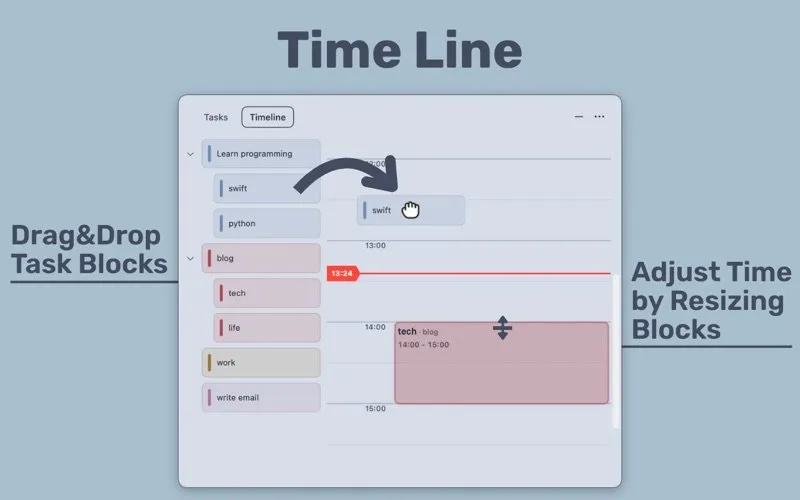
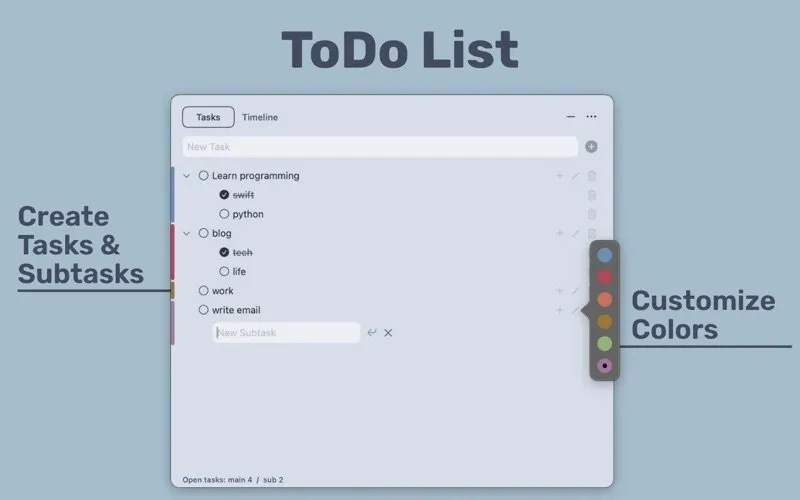
Yes. TaskLine is a menu bar app with two tabs. In Tasks you write the list, with subtasks and colours. In Timeline the same tasks appear as blocks that you drag onto the hours of the day and resize by their edges. While a block is running, the menu bar shows how much of it is left.
From list to plan in three steps
List: type tasks into the Tasks tab, add subtasks under them, and give each a colour.
Place: switch to Timeline and drag a task onto a time. Drag the block's edge to make it longer or shorter.
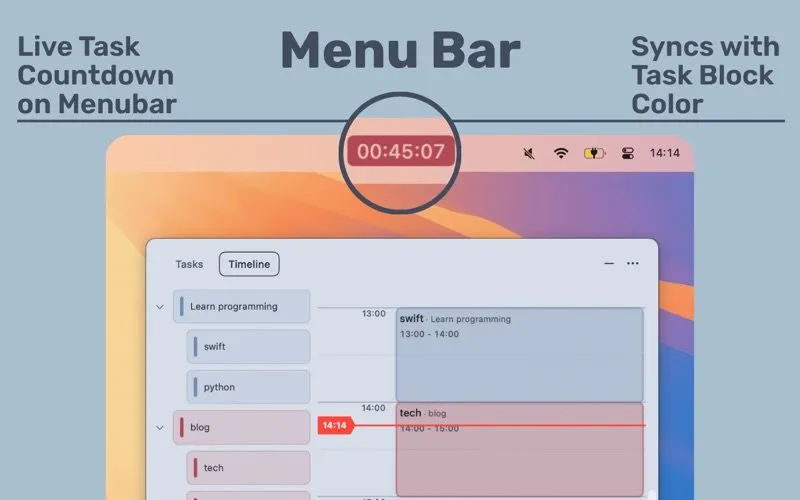
Work: close the window. The menu bar shows a live countdown for the current block, such as 00:45:07, until it ends.
Menu bar to do list Mac users can leave open
TaskLine has no separate calendar view, projects or due dates. It is built for “today's tasks”, in the developer's words, and the whole app is a 671.7 KB download. A footer counts open main tasks and subtasks, and checked items are struck through.
What the timeline and countdown actually do
In short
A red line marks the current time, and the timeline scrolls to it. Blocks keep their task's colour, and the menu bar countdown uses the same colour. One task can be placed several times a day, deleting a task clears its blocks, and settings change the visible time range, the theme and trackpad haptics.
Drag and drop daily planner Mac basics
Repeat placements: put “check email” at 9:00 and again at 16:00 without duplicating the task.
Live sync: delete a task in the list and its blocks leave the timeline; edit a task after creating it (added in version 1.2.0).
Long titles: text that does not fit a short block scrolls inside it, also new in 1.2.0.
Countdown: the menu bar timer shows the time remaining in the current block, tinted in that task's colour, even with the window closed.
Settings, privacy and size
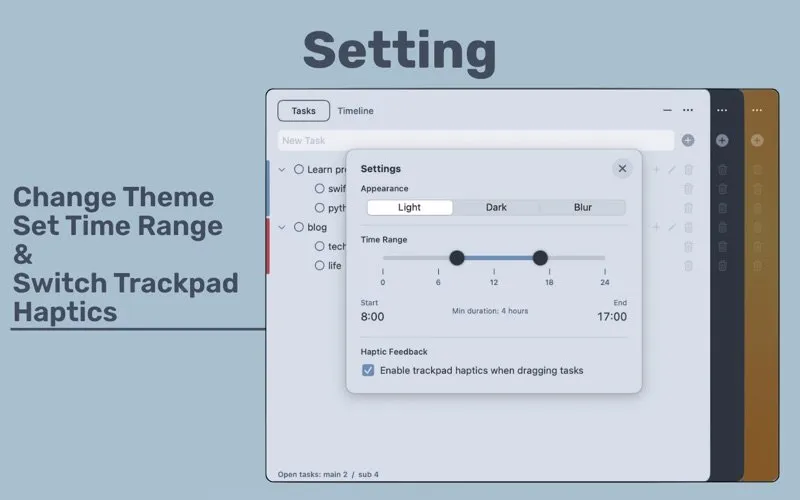
Settings hold three things: Light, Dark or Blur appearance, a time range slider that sets which hours the timeline shows (the screenshot shows 8:00 to 17:00 with a 4-hour minimum), and an option for trackpad haptics while you drag. The App Store privacy label reads “Data Not Collected”, and the developer says everything stays on your Mac. TaskLine needs macOS 13 or later and is in English only.
Lifetime
$14.99 once
Or
$0.99/mo, $9.99/yr
Runs on
macOS 13 or later
Download
671.7 KB
Latest version
1.2.0, Dec 2025
Data
Stays on your Mac
Free tier, subscription or $14.99 once
In short
The free version allows 10 tasks, 3 timeline placements and a fixed 8 AM to 5 PM range. Pro removes those limits for $0.99 a month, $9.99 a year, or a Lifetime Access purchase at $14.99 once. The lifetime purchase costs the same as 18 months of the yearly plan.
Three placements is enough to try the drag-and-countdown loop for a morning, not to plan a working day, so treat the free tier as a trial. All three paid options unlock the same things: unlimited tasks, unlimited placements and a custom time range. If you expect to use it past a year and a half, the one-time purchase is the cheaper route, and it leaves nothing to cancel.
A young app, so test it first
TaskLine 1.0 shipped on 17 December 2025 and 1.2.0 followed a week later; there has been no update since, and the App Store does not yet show enough ratings for a score. We did not run it on a Mac for this article. Use the free tier for a morning before you pay. Everything here was checked on 18 November 2026.
Time blocking apps for Mac, compared
In short
TaskLine is the cheapest pay-once option here and the most minimal, but it has no calendar sync. Chunk also works from the menu bar and syncs calendars for $39.99 once. Structured, Sunsama and Akiflow are subscriptions, though Structured sells a $99.99 lifetime. Notion Calendar and Apple Calendar are free.
| App | Price | Lives in | Calendar sync | Other devices |
|---|---|---|---|---|
TaskLine this one this article | $14.99 once, or $0.99/mo | Menu bar | No | Mac only |
Chunk chunkapp.net | $39.99 once | Menu bar panel | Apple, Google, Outlook | Mac; iPhone planned |
Structured Pro | Subscription or $99.99 lifetime | App window | Yes | iPhone, iPad, Watch |
Sunsama Pro | $17/mo yearly, $22 monthly | App window | Yes | Web, desktop, mobile |
Akiflow Pro | $19/mo yearly, $34 monthly | App window | Yes | Desktop, mobile |
Notion Calendar Notion | Free | App window | It is a calendar | Web, desktop, iPhone |
Apple Calendar built in | Free with macOS | App window | It is a calendar | iPhone, iPad |
Time blocking without subscription
Two apps in the table let you pay once and keep the full feature set: TaskLine at $14.99 and Chunk at $39.99 (or $79.99 for a family licence). Chunk is the closer rival and does more: two-way sync with Apple, Google and Outlook calendars, Reminders you can drag in, and day, week and month views. TaskLine is for people who do not want their calendar in the plan at all. Structured is one app across iPhone, iPad and Mac, with a $99.99 lifetime option. Sunsama and Akiflow cost $204 and $228 a year on annual billing.
Who TaskLine suits, and who should skip it
In short
People who keep a short daily to-do list and want to give each item a time without opening a calendar. Skip it if your day is shaped by meetings that live in Google or Apple Calendar, if you want to plan on an iPhone, or if a one-person app last updated in December 2025 makes you uneasy.
It fits a developer, student or freelancer with three to eight tasks a day and few fixed appointments: planning the day takes a few drags, and the countdown in the menu bar keeps the current block in view while you work. Because nothing leaves the Mac, there is no account to create. The cost of that simplicity is that TaskLine knows nothing about your meetings, so on a calendar-heavy day you would be planning around them by eye.
Frequently asked questions
Does TaskLine sync with Apple Calendar or Reminders?
No. Neither the App Store listing nor the developer’s page offers or mentions a calendar or Reminders connection. Tasks and blocks live only inside TaskLine on that one Mac, so meetings in your calendar will not appear on its timeline. If you need that, look at a calendar-based planner instead.
Is TaskLine’s free version enough to time block a workday?
Not really. The free version allows up to 10 tasks and only 3 timeline placements, and the visible range is fixed at 8 AM to 5 PM. That is enough to try the drag-and-countdown flow for a morning, not to plan a full day. Unlimited tasks, placements and a custom time range need Pro.
Is TaskLine a subscription?
It offers both. Pro costs $0.99 a month or $9.99 a year, and there is a Lifetime Access purchase for $14.99 once with no recurring charge. All three are in-app purchases on the Mac App Store; the app itself is a free download.
Is there an iPhone or iPad version of TaskLine?
No. TaskLine is a Mac app for macOS 13 or later, and the developer says your data stays on that device. There is no mobile companion and no sync between Macs.
Does TaskLine collect my data?
According to its App Store privacy label, no: the developer declares “Data Not Collected”. The developer’s FAQ adds that all data is stored locally and never transmitted externally. Apple does not verify these declarations.
Is TaskLine the best time blocking app for Mac?
Not for everyone. It is the cheapest pay-once option in our comparison, but it has no calendar sync and is a young app last updated in December 2025. Chunk ($39.99 once) adds two-way calendar sync, Structured adds iPhone and iPad apps, and Apple Calendar does basic blocking for free.
Sources
- 1
Menu bar task and timeline app; requires macOS 13 or later; 671.7 KB; English; version 1.2.0 on 24 December 2025 after 1.0.0 on 17 December 2025; in-app purchases $0.99 monthly, $9.99 yearly, $14.99 lifetime; privacy label Data Not Collected.
- 2
Free: up to 10 tasks, 3 timeline placements, fixed 8 AM to 5 PM range. $0.99 a month, $9.99 a year, or $14.99 one-time. Data stored locally and never transmitted externally.
- 3
Free 7-day trial, then a $39.99 lifetime licence or $79.99 family licence; no subscription.
- 4
Mac time blocker with two-way Apple, Google and Outlook calendar sync, Reminders drag-in and a menu bar countdown; macOS 12 or later.
- 5
Free download for iPhone, iPad, Mac (macOS 15 or later), Apple Watch and Vision Pro; Structured Pro sold monthly, yearly, or as a $99.99 lifetime purchase.
- 6
Pro $17 a month billed yearly ($204 a year) or $22 billed monthly.
- 7
Pro $19 a month billed yearly ($228 a year) or $34 billed monthly; 7-day free trial.
- 8
Free calendar app.
TaskLine - Todo & Timeline
Menu bar to-do list with a drag-and-drop daily timeline and focus timer.
once
macOS
More apps worth a look: browse the desktop