
Private iPhone Document Scanner That Stays Offline
You open a scanner app to send one form and it wants an account, stamps a watermark across the page, or quietly uploads a photo of your ID to a server you have never heard of. Clearcan is an iPhone app that scans documents to PDF entirely on the device, with no account and no cloud. By the end of this piece you will know how it works, what “offline” actually means for your documents, and the honest cases where Apple's own built-in scanner already does the job for free.

OneTimePay.app
9 min read
Point and tap
VisionKit finds the edges
Clean PDF
Multi-page, no watermark
Stays on your phone
No account, no cloud
Is there an iPhone document scanner that doesn't upload my scans to the cloud?
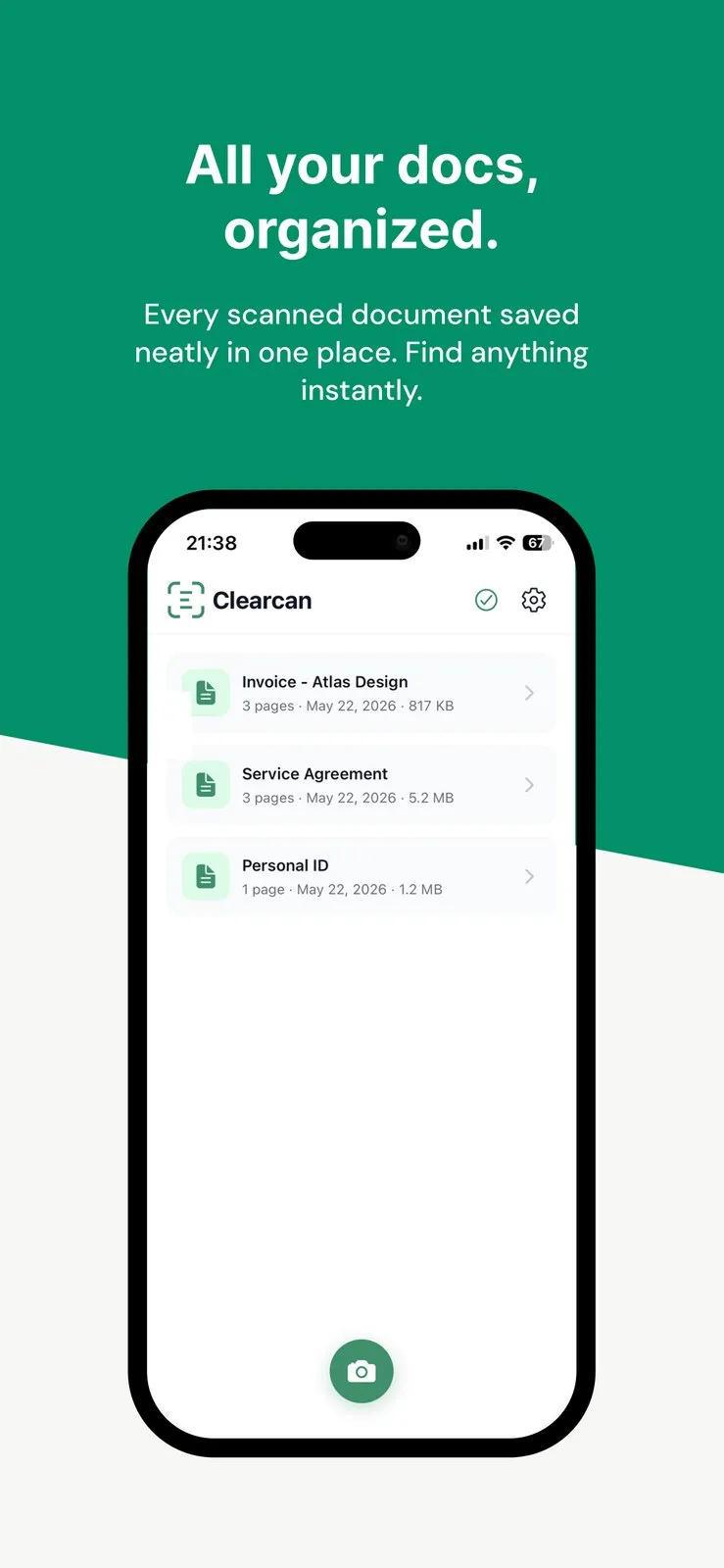
Yes. Clearcan is a free iOS scanner built on Apple VisionKit that runs entirely on the device. It has no account and no cloud feature, so a scan becomes a PDF that sits in an on-device library and goes out only when you share it through Files, Mail, Messages, or AirDrop. There is no company server that ever holds a copy to upload.
On this page
Is there an iPhone document scanner that doesn't upload my scans to the cloud?
In short
Yes. Clearcan is a free iPhone scanner built on Apple VisionKit that scans entirely on the device. It has no account and no cloud storage, so a scan becomes a PDF in an on-device library and leaves your phone only when you deliberately share it. Nothing is uploaded to a server in the background.
Most scanner apps in the App Store are built around a cloud account, because syncing your documents to their servers is how they keep you subscribed. Clearcan is the opposite kind of tool. It is a private iPhone document scanner whose whole design is to capture a page, turn it into a clean PDF, and hand that file to you, then get out of the way. The rest of this piece is how the scanning works, what the offline model does and does not protect, how it stacks up against CamScanner, Adobe Scan, and the scanner already on your phone, and the honest limits worth knowing before you install it.
Scan to PDF without a subscription, ads, or an account
In short
Clearcan opens straight to the camera. Apple VisionKit finds the document edges, corrects the perspective, and captures one or many pages into a single PDF. You save that PDF or send it through Mail, Messages, AirDrop, or Files. There is no sign-up screen, no ad, and no in-app purchase between opening the app and exporting a finished document.
The capture engine is Apple VisionKit, the same on-device document camera Apple ships to developers, so edge detection and perspective correction are handled by the system rather than a homegrown filter. In practice you point the phone at a receipt, an invoice, or a contract, tap once, and the page comes out square and readable. Multi-page documents combine into a single PDF, so a three-page agreement is one file rather than three loose images, and there is no page cap forcing you to stop at a certain length.
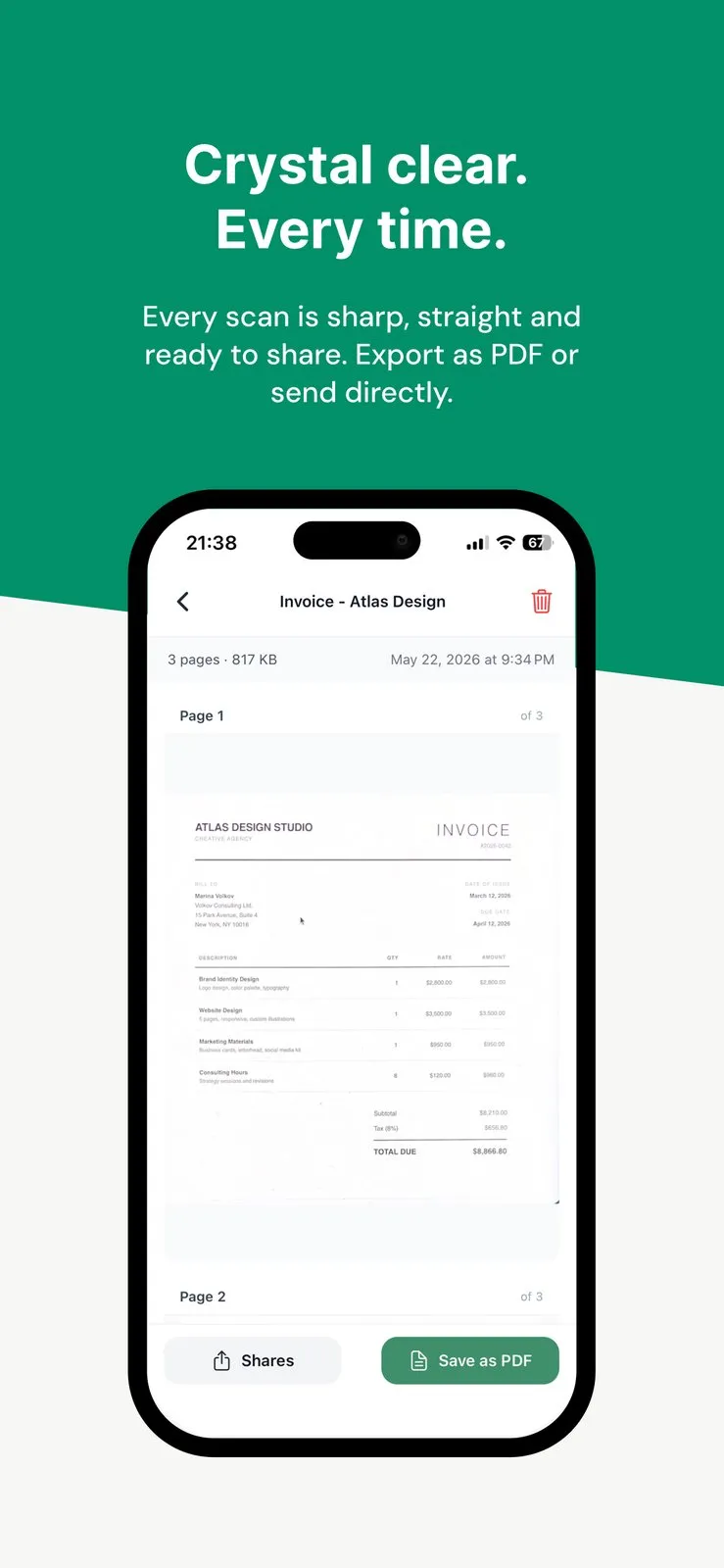
The part that is easy to miss is what is not there. No account wall stands between you and the camera, so you never hand over an email address to scan a page. Nothing watermarks the output, so a scan is ready to send to a landlord or an accountant as-is. And because the app is free with no in-app purchases, there is no “unlock export” paywall waiting at the end of the flow, which is where many free scanners actually charge you.
Why not just use the built-in iPhone scanner?
In short
Fair question, and the honest answer is that you might not need a separate app. Apple's Notes and Files apps already scan documents to PDF for free using the same VisionKit framework Clearcan is built on, and they are pre-installed. For light, occasional scanning they are genuinely enough.
A spotlight is only worth trusting if it points at the free option first, so here it is. Open Notes, tap the camera, choose Scan Documents, and you get the same edge detection and PDF export. The Files app has a scan action too, and both let you sign or mark up the result. If that already covers what you do, you are done and you have installed nothing.
Where a dedicated scanner earns its place
The built-in tools bury scanning inside a note or a folder, so the scan lives as an attachment rather than a document you manage. Clearcan is a PDF-first app: it opens to scanning, keeps your scans in one library, and makes exporting the finished PDF the main action rather than a buried menu. That focus is the reason to add it, not a longer feature list.
There is also a quieter storage difference that matters for privacy, and it gets its own section next. Scans you make in Notes or Files can ride into your iCloud backups when iCloud sync is on, which is convenient but means a copy leaves the phone. Clearcan keeps a local library and uploads nothing on its own. Whether that matters depends entirely on what you scan.
What offline scanning means for your data
In short
Offline means the scan is processed on the device and never sent to a remote server. Clearcan has no account and no cloud, so scanned documents live in an on-device library. A scan leaves your phone only when you share it, and deleting it in the app, or deleting the app, removes it. There is no vendor copy sitting on a server.
An offline document scanner, in plain terms
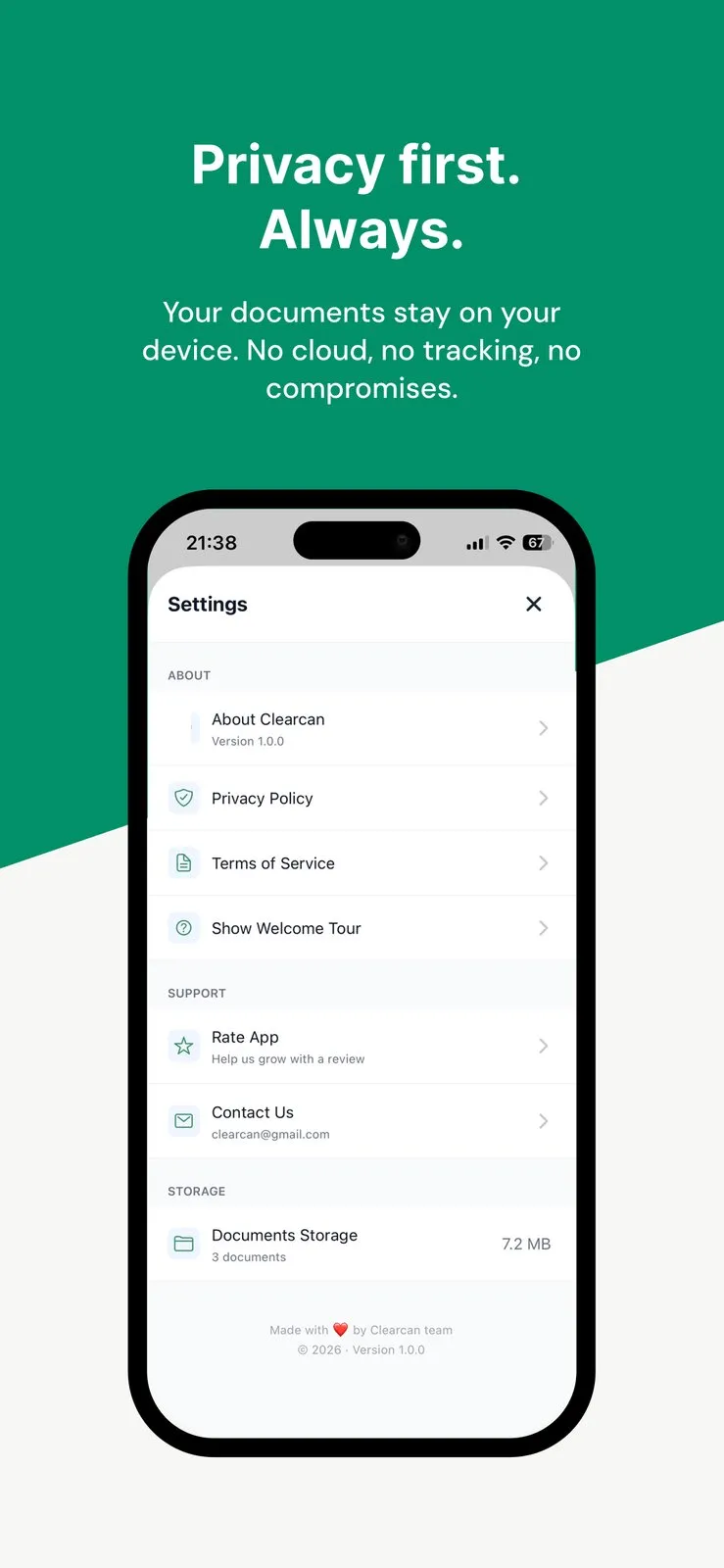
“On-device” is a claim a lot of scanner apps make, so it helps to be concrete about what it buys you here. Because Clearcan has no login and no sync feature at all, there is no background upload to switch off and no account to leak. Your scanned documents sit in the app's own library on the phone, the way photos sit in your camera roll, and the app's settings show a plain storage total for what it is holding. The trade is deliberate: you get privacy and simplicity, and you give up cross-device sync, which this app simply does not do.
Scanner app data retention, deletion, and uninstalling
This is the question most reviews skip: what happens to a scan after you are done with it. With Clearcan the answer is simple because there is nowhere else for the file to be. Delete a document in the library and it is gone from the phone. Uninstall the app and its whole library goes with it. There is no server-side copy to request the deletion of, because the app never made one. That is a cleaner story than most cloud scanners can tell, where a document can persist in a vendor account long after you think you removed it.
Clearcan vs CamScanner, Adobe Scan, and the built-in tools
In short
Scanner apps split into three camps: cloud-account freemium apps like CamScanner and Adobe Scan, the free scanner already built into iOS, and a few private on-device apps like Clearcan. Here is the whole picture in one place, since where your scans are stored is the thing worth comparing directly.
| App | Free of watermarks | No page cap | No account | Runs on device | Price |
|---|---|---|---|---|---|
Clearcan this one on-device, VisionKit | Free | ||||
Apple Notes / Files built-in scanner | Free, built-in | ||||
CamScanner cloud freemium | Freemium / sub | ||||
Adobe Scan Adobe account, cloud | Free tier + sub |
The cloud freemium apps: CamScanner and Adobe Scan
The popular downloads are mostly account-and-cloud apps. CamScanner watermarks free scans, pushes you toward an account, and routes documents through its own cloud, which is exactly the model a privacy-minded user is trying to leave. Adobe Scan is cleaner about watermarks, but it requires an Adobe account, uploads to Adobe's cloud, and caps what the free tier will do before nudging you to a subscription. Both are capable and both are fine if you want cloud sync, but neither is a fit for someone whose goal is to keep a scanned passport or lease off other companies' servers.
A CamScanner alternative with no watermark
If the specific thing you want is CamScanner's convenience without the watermark, the account, or the upload, Clearcan covers all three: it scans to PDF with no watermark and no page cap, needs no account, and keeps the file on the device. It is free, so there is no five-year subscription math to run, which is the usual reason people leave CamScanner. The honest counterweight is that the free scanner already on your iPhone is also a no-watermark, no-account option, so try that first and reach for Clearcan when you want the dedicated flow and a real document library.
Price
Free
Platform
iOS
Scans
Multi-page PDF
Storage
On-device
Subscription
None
Product Hunt
18 upvotes
Where Clearcan stops: OCR, Android, and heavy workflows
In short
Clearcan is a focused iPhone scanner, and a fair spotlight names its edges. It is iOS only, it does not advertise OCR or searchable text, and it is not built for signing, folders, or team workflows. If you need any of those, either check the current App Store listing or pick a tool that lists the feature outright.
iOS only. There is no Android app and no web version, so an Android user or a cross-device household should look elsewhere.
OCR is not claimed. Clearcan captures and exports PDFs, but neither its listing nor its screens mention text recognition, so treat searchable text as absent until Apple's App Store description says otherwise. Apps like Cloudless Scan and QuickScan advertise on-device OCR if that is a hard requirement.
Not a document suite. It scans, stores, and shares. If your job needs signing flows, deep folder systems, or shared team libraries, a heavier app such as Scanner Pro fits that better, usually at the cost of an account or a subscription.
The case for Clearcan is narrow and clear: you are on an iPhone, you scan documents often enough to want a dedicated app, and you would rather those documents stay on your phone than pass through a company's cloud. If that is you, a free, offline, no-account scanner is hard to argue with. If you need OCR, sync, or Android, it is honest to say Clearcan is not your app, and it does not pretend to be.
Frequently asked questions
What happens to my scanned documents when I delete them or uninstall an iPhone scanner app?
That depends on where the app keeps scans. Clearcan stores scanned documents in an on-device library with no account and no cloud, so deleting a document in the app removes it, and uninstalling the app takes the whole library with it. Nothing sits on a company server to linger. Apps that sync to iCloud or a vendor cloud can keep copies after you uninstall, so check each app’s storage model before you rely on deletion.
Is there a CamScanner alternative that scans to PDF with no watermark and no cloud upload?
Yes. Clearcan scans to PDF with no watermark, no page cap, and no cloud upload, because it runs on Apple VisionKit entirely on the device and has no account. CamScanner watermarks free scans and pushes an account and subscription. Clearcan is free with no ads or in-app purchases, and it is iOS only.
Does Clearcan do OCR or searchable text recognition?
Clearcan captures documents, corrects the edges, and exports a PDF, but neither its App Store listing nor any of its screens mention OCR, so treat searchable text as unconfirmed and check the current App Store description before relying on it. If in-document text search is a hard requirement, apps like Cloudless Scan and QuickScan advertise OCR, some of them also on-device.
Is the built-in iPhone scanner private too?
Yes. Apple’s Notes and Files apps scan on the device using the same VisionKit framework Clearcan is built on. The difference is storage: Notes and Files scans can ride into your iCloud backups when iCloud sync is on, while Clearcan keeps a local library and shares a plain PDF only when you choose to. If the built-in tools already cover your scanning, you do not need a separate app.
Can I scan a multi-page document to one PDF without a page limit?
Yes. Clearcan uses VisionKit multi-page capture to combine pages into a single PDF with no page cap and no watermark. For comparison, Adobe Scan’s free tier is commonly capped (around 25 pages a month across a handful of documents) and CamScanner watermarks free scans, so verify the current free-tier limits before you commit to a rival.
Does Clearcan need an internet connection or collect any data?
No. Clearcan runs offline with no account and no tracking, so scanning does not need a connection and no analytics profile is tied to your documents. That claim rests on the app’s own description and privacy screen rather than an independent audit, so if you handle regulated records, confirm it against the App Store privacy label before you trust it with them.
Sources
- 1
The maker's own listing: the source for VisionKit multi-page scanning with edge detection and perspective correction, PDF export and sharing through Mail, Messages, AirDrop, or Files, the on-device document library, and the free, no-account, no-subscription, no-cloud model.
- 2
Apple Developer: VisionKit document scanning (VNDocumentCameraViewController)
Apple's on-device document camera API, the same framework Clearcan and the built-in iPhone scanner use for edge detection and multi-page capture, so the scanning itself happens on the device by design.
- 3
Apple Support: Scan documents in the Notes app on iPhone
Confirms iOS scans documents to PDF for free with the built-in Notes and Files apps, the honest baseline every third-party scanner is measured against.
- 4
Apple: App privacy details on the App Store
Explains the App Store's privacy label, a documented way to check what data an app collects rather than trusting its marketing copy, which matters for any scanner that touches IDs or contracts.
- 5
Macworld: How to scan documents and make PDFs on your iPhone or iPad
An independent walkthrough of the built-in Notes and Files scanning flow, used to sanity-check what the free, pre-installed tools already do.
Clearcan
Free document scanner. No ads, no subscriptions, no cloud.
iOS
More apps you buy once: browse the desktop