
Screen Pi: A Browser Screen Recorder That Never Uploads
Most quick screen recorders ask for two things before the first take: an account, and permission to put your video on their servers. Screen Pi asks for neither. It is a single web page that records a screen, window or tab with your browser's own screen sharing and hands the file back as a download. This piece covers what it records, which of its settings actually do something, and how it compares with the free plans you may already know.

OneTimePay.app
6 min read
Can I record my screen in the browser without signing up or uploading anything?
Yes. Screen Pi is a free web page that records a screen, window or tab with your browser's own screen-sharing feature, builds the video on your computer and hands it back as a WebM download. No account, no install, no upload, and no time limit set by the app.
On this page
Can I record my screen in the browser without signing up or uploading anything?
In short
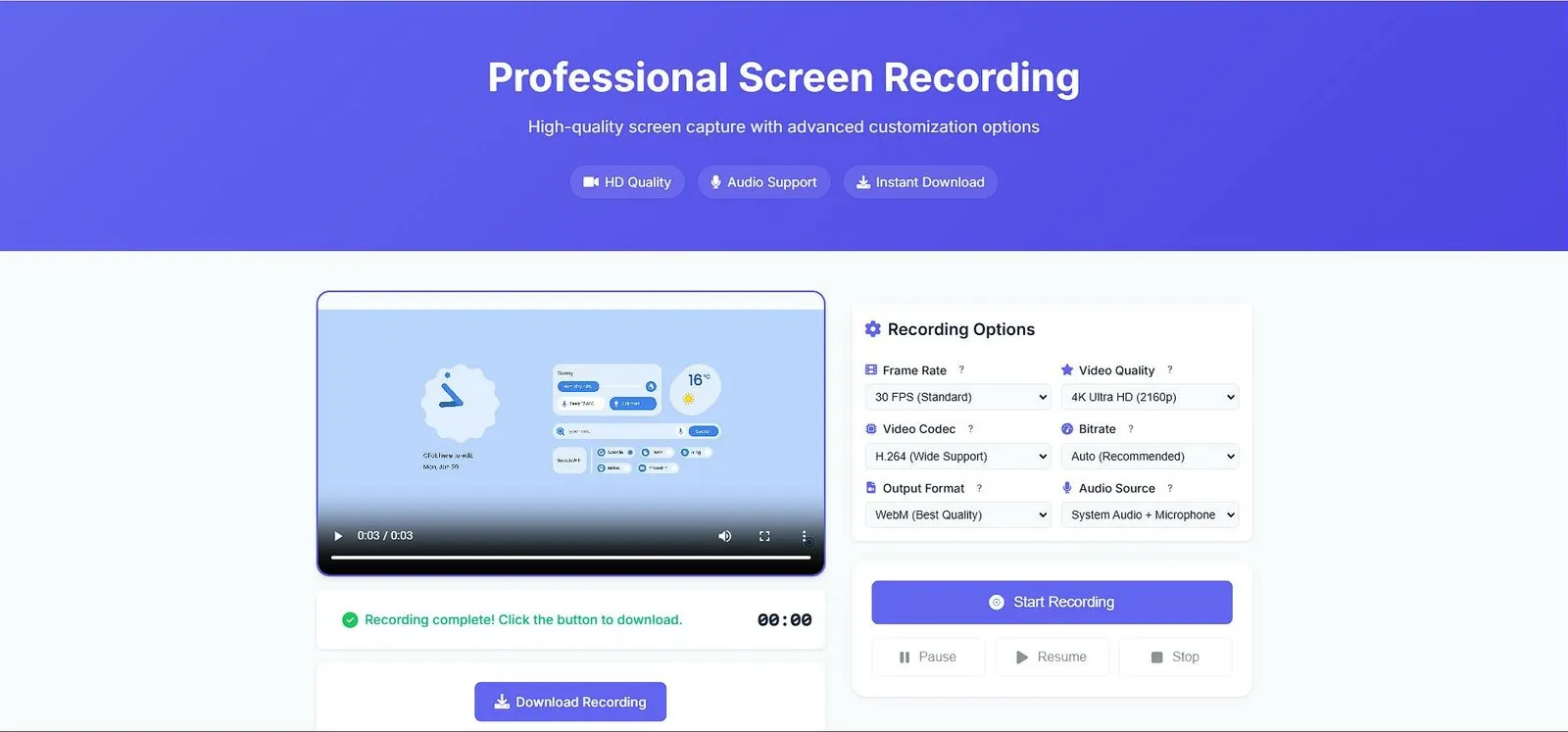
Yes. Open the page, press Start Recording, and pick what to share in the browser's own dialog: a whole screen, one window or a tab. The browser's built-in recorder captures it on your machine. When you press Stop you get a preview player, the file size and a Download Recording button.
Record screen without uploading
We read the page's code rather than take the privacy page on trust. Its one script asks the browser for the screen and microphone, records them, and turns the result into a local download link. It sends no requests of its own. Loading the page pulls in only its own files, Google Fonts and an icon stylesheet, and the privacy page says there are no tracking cookies or third-party analytics.
Screen recorder no sign up
There is no login, no email box and no paywall. Every option is open on the first visit. The browser asks for screen-sharing permission each time you start, which is a browser rule rather than a Screen Pi choice, and asks once more for the microphone if you include it.
What you can set before you hit record
In short
Six menus sit beside the preview. Some are firm settings, some are requests the browser may scale back, and one is not used at all. Pause and Resume work mid-take, and a timer runs while you record.
Frame rate: 30, 60 or 120 FPS, sent as a request. Your browser and display decide what you get.
Resolution: 480p up to 4K, also a request. A 1080p screen does not become a 4K recording.
Bitrate: Auto, or 8, 15, 30 or 50 Mbps. This one is passed straight to the recorder.
Codec: H.264, VP9 or HEVC. If the browser refuses the choice, the page quietly falls back to WebM.
Audio source: system audio and microphone, either alone, or none.
What file you actually get
Always a WebM file, named screen-recording- plus the date and time. The Output Format menu lists MP4 and MKV, but the code never reads it. In our test in Chromium 130 the H.264 and HEVC options were rejected too, so the recorder used WebM; VP9 was accepted. WebM plays in Chrome, Firefox, Edge and VLC, and uploads to YouTube. If a client or an editor wants MP4, plan a conversion step.
Record system audio in browser
This is decided by your browser, not by Screen Pi. According to MDN, Chrome and Edge can include the whole system's sound on Windows and ChromeOS when you share an entire screen, but on macOS and Linux only the audio of a shared browser tab. Firefox and Safari share no screen audio at all. The site's FAQ simply says yes to system audio, which is broader than that. Your microphone works in every browser, with echo cancellation and noise suppression on.
Price
Free, no account
Runs on
Desktop browsers
Saves
WebM download
Uploads
None
Length cap
None set
Extras
Pause, resume, mic
Browser screen recorders and their free plans, compared
In short
Screen Pi is the only option here with no account, no length cap and no upload that also runs in a browser tab. It is also the barest. The hosted recorders add editing and share links but cap free recordings, and the installed recorders need no browser at all.
| App | Price | Account | Free length cap | Where the video goes |
|---|---|---|---|---|
Screen Pi this one this article | Free | None | None set | Download to your computer |
Clipchamp Microsoft, browser | Free recorder | Free sign-up | 30 min per recording | Into the Clipchamp editor |
Loom Starter plan | $0, Business $18/user/mo | Required | 5 min, 25 videos | Loom cloud |
Screencastify Free plan | $0, Starter from $7/user/mo | Required | 30 min, 10 videos | Screencastify account |
OBS Studio installed app | Free, open source | None | None | File on your computer |
Mac Screenshot app Shift-Command-5 | Built into macOS | None | Not stated | .mov on your Mac |
Snipping Tool Windows 11 | Built into Windows | None | Not stated | File on your PC |
If you record often and want to trim the clip or send a link, Clipchamp, Loom or Screencastify will save you steps, at the cost of an account and a cap on free recordings: 5 minutes on Loom Starter, 30 on Clipchamp and Screencastify Free. If you can install software, OBS Studio is free, records as long as you like and writes MP4 or MKV, and your Mac or Windows 11 PC already has a recorder built in. Screen Pi fits the gap between them: a computer where you cannot install anything and do not want to sign in to a service.
Who Screen Pi suits, and who should skip it
In short
It suits quick, private captures on a desktop computer: a bug report, a short how-to, a clip for a colleague, on a work or school machine where installing software is not an option. Skip it if you need MP4 straight out, system audio on a Mac, editing, a webcam bubble or a share link.
Screen Pi is a small, one-person project by Mohammad Arif Hossen. The About page calls it open source but links to his GitHub profile rather than a repository, and the FAQ mentions premium features that we could not find anywhere on the site. The recorder itself works as a plain wrapper around the browser's own recording features, which is why it needs no server and why its limits are your browser's limits.
One more practical point: the browser keeps the whole take until you press Stop, then builds the file. A long session is bounded by your computer's memory and disk, so for a two-hour lecture an installed recorder that writes to disk as it goes is the safer pick. It also does not work on Android phones, which do not let web pages capture the screen.
Before an important take
Record ten seconds with the audio source you need, download it, and play it back to check the sound came through in your browser. Everything here was verified on 26 October 2026.
Frequently asked questions
Does Screen Pi record system audio?
It depends on your browser and operating system, not on Screen Pi. In Chrome or Edge on Windows and ChromeOS you can include the whole system’s audio when you share an entire screen. On macOS and Linux those browsers share only the audio of a browser tab. Firefox and Safari share no screen audio at all. The microphone works in every case, with echo cancellation and noise suppression switched on.
Is there a time limit on Screen Pi recordings?
Screen Pi sets none. Its FAQ says the only limit is your available storage. The browser holds the whole take until you press Stop and then builds the file, so a very long session is bounded by your computer’s memory and disk. For hour-long recordings, a desktop recorder such as OBS Studio, which writes to disk as it goes, is the safer choice.
Can Screen Pi save an MP4?
Not in practice. The Output Format menu offers MP4 and MKV, but the page always saves a WebM file named screen-recording-<date>.webm. In our Chromium test the H.264 and HEVC codec options were not accepted either, so the recorder fell back to WebM. If you need MP4, convert the file afterwards with a tool such as HandBrake or VLC.
Does Screen Pi work on a phone?
Not on Android: Chrome and Firefox for Android do not offer screen capture to web pages. MDN’s compatibility data lists iPhone Safari support only from Safari 27, and the page is laid out for a desktop. Use it in Chrome, Edge, Firefox or Safari on a computer.
Is Screen Pi really free?
Yes. There is no account, no paywall and no checkout anywhere on the site, and the recorder works with every option unlocked. Its FAQ says premium features are offered for advanced users, but on 26 October 2026 we found no paid plan, price or upgrade button on any page.
Is Screen Pi the only way to record without an account?
No. OBS Studio, the Mac’s built-in recorder (Shift-Command-5) and the Windows 11 Snipping Tool also need no account and keep the file on your computer. They are installed apps, though. Screen Pi’s difference is that it runs in a browser tab, which helps on a computer where you cannot install software.
Sources
- 1
The recorder page and its app.js: frame rate, resolution, codec, bitrate, format and audio menus; Pause and Resume; the .webm download name; no network requests in the code. Developer Mohammad Arif Hossen.
- 2
Free to use, premium features mentioned, no time limit beyond storage, browser and system audio claims.
- 3
Recordings processed locally; no tracking cookies or third-party analytics.
- 4
MDN: MediaDevices.getDisplayMedia()
Browser support for audio tracks varies; compatibility data: full system audio in Chrome on Windows and ChromeOS, tab audio only on macOS and Linux, none in Firefox or Safari; no Android browser support.
- 5
Free for all users after a free sign-up; up to 30 minutes per screen and webcam recording; no limit on the number of recordings.
- 6
Starter $0 with 5-minute screen recordings and up to 25 videos per person; Business $18 per user a month.
- 7
Free: up to 30 minutes per recording and 10 videos. Starter $7 per user a month billed annually ($19 monthly).
- 8
Free and open source recording and streaming software for Windows 10 and 11, macOS 13 or newer, and Linux.
- 9
Apple: take a screenshot or screen recording on Mac
Shift-Command-5 opens the Screenshot tools; recordings save as .mov; a microphone can be chosen under Options.
- 10
Record button or Windows logo key + Shift + R, select an area, Start and Stop; save as-is or edit in Clipchamp.

Screen Pi
Professional screen recording in the browser
Web
More apps worth a look: browse the desktop